Getting Started
Requirements
- WordPress 6.0 or higher.
- PHP 8.1 or higher.
- An API key from Anthropic (Claude), OpenAI (GPT), or DeepSeek, your choice — billed directly by that provider, the plugin doesn't resell your usage or add a markup on it.
Installation
- Upload the plugin ZIP from Plugins → Add New → Upload Plugin, and activate it.
- On activation, WordPress automatically takes you to the AI Provider tab — no need to go looking for it.
- Choose your AI provider, paste its API key and click Test connection to confirm it works before saving (see AI Provider).
- Go to License and paste the key from your purchase confirmation email to enable automatic updates and support (see License & Updates) — this is separate from the API key above and never affects whether the chat widget works.
- Fill in Company & Content so the assistant knows about your business (see Company & Content).
First-run redirect
This redirect only happens once, right after activating the plugin (not on every admin page load), and is automatically skipped if you activate several plugins at once from the plugins list (bulk activation) — in that case you simply stay on the plugins list, as expected.
Live widget preview
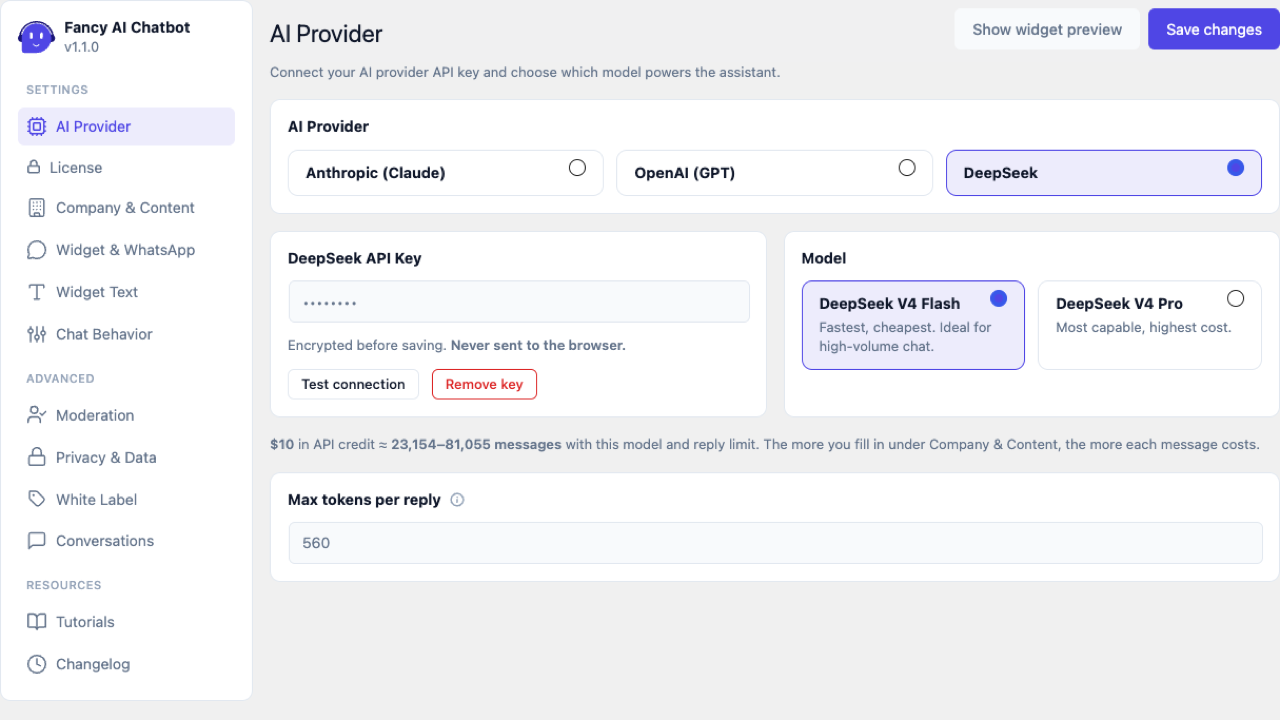
Every settings tab embeds a real, fully working copy of the chat widget directly in the page — not a mockup. It's the same widget your visitors see, wired up to the same backend, so you can try it out (including real AI replies) while you tune settings, without leaving wp-admin or opening your site in another tab.
- Hide widget preview / Show widget preview, next to Save changes, toggles it — handy if it's in the way while you work. This choice isn't saved as a site setting; it only lasts for your current browser session, so the preview is back by default next time you open the settings page.
- The preview always sits in the bottom-right corner, regardless of your configured Widget position — this is deliberate, so it never covers wp-admin's own left-hand navigation when your widget is set to the left side. Your actual site still fully respects whatever position you've configured; only this in-admin preview is pinned to the right.
- Unlike the real widget on your site, the preview always shows even if the widget would normally be hidden (missing API key, page-visibility rules, license issues) — so you can always see and test it while configuring things, even in states a real visitor would never see it in.