Chat Behavior
Two sub-tabs: Behavior and Spend Limit.
Behavior
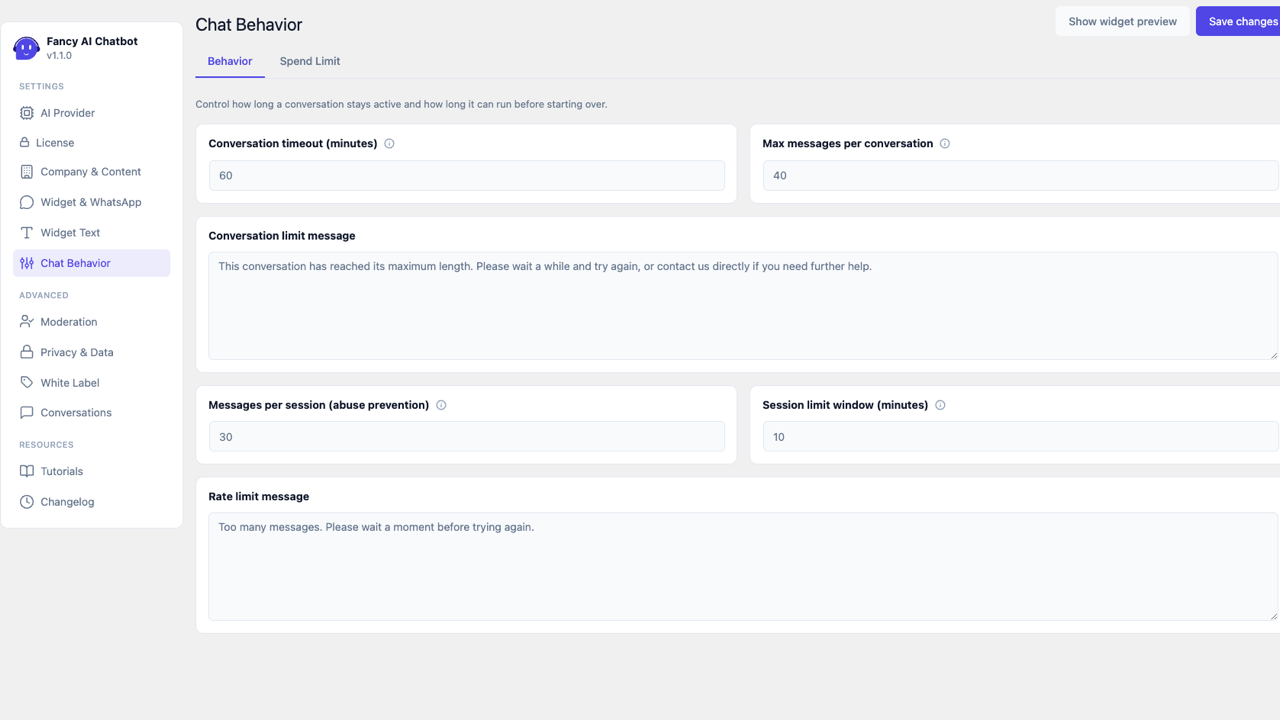
- Conversation timeout (minutes) — minutes of inactivity before the next message starts a new conversation instead of continuing the previous one. Defaults to 60 (1 hour). Examples: 30 = half an hour, 1440 = 24 hours.
- Max messages per conversation — hard cap on messages within a single conversation (default 40, range 2–500), independent of the time-based limit. Protects against the cost of an abnormally long conversation. This is a total-length cap, not an abuse control — starting a new conversation resets it. See "Messages per session" below for the actual abuse throttle.
- Conversation limit message — what the visitor sees once that cap is reached. Contacts and the WhatsApp number are appended automatically, same as the other limit messages on this page.
- Messages per session (abuse prevention) — blocks a visitor who sends more messages than this within the time window below (default 20 messages). This is a sliding window: each new message extends it, so an active abuser never earns a fresh quota by simply waiting it out. It resets on its own once the window passes with no new messages.
- Session limit window (minutes) — the sliding time window the count above is measured over (default 10).
- Rate limit message — what the visitor sees while rate-limited. Contacts and the WhatsApp number are appended automatically here too.
Spend Limit
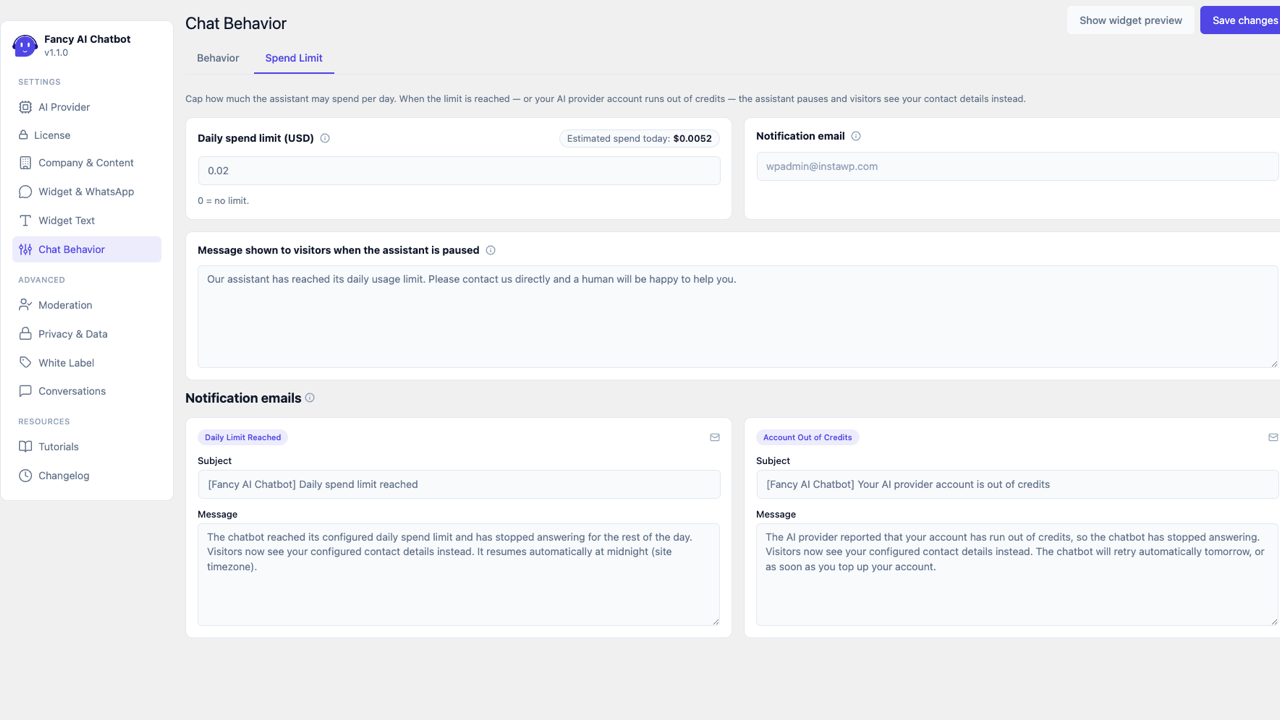
The budget "kill switch": measures actual spend (input, output, and cache tokens reported by your AI provider, each at its real rate), not an estimate.
- Daily spend limit (USD) — 0 = no limit. Next to the field, the live estimated spend for today is shown.
- Spend limit message — what the visitor sees once the limit is reached. Contacts and the WhatsApp number (Widget & WhatsApp) are automatically appended at the end — no need to repeat them here.
- Notification email — who to notify when the limit is reached or the account runs out of credits. Empty = uses the site admin's email. At most one email per day per cause.
- Editable subject/body for the two cases separately: "Daily Limit Reached" and "Account Out of Credits". Today's spend, the limit, and a link to these settings are automatically appended below the text you write.
What happens when the limit is reached
The assistant stops replying for the rest of the day (it doesn't keep spending). The admin sees a notice with today's spend/limit and a "Resume assistant now" button to resume it manually ahead of time (resets the counter). If not clicked, it resumes on its own at midnight, site time.
"Out of credits" detection
If your AI provider reports that the account ran out of balance, the plugin distinguishes this from a temporary network error: it stops trying calls for the rest of the day (no wasted requests against an empty account) and shows the visitor the same human contact fallback as with the daily limit.
Not dependent on WP-Cron
The counter keeps its own date and resets itself when the day changes — it works the same whether the site's cron is disabled or broken, unlike other plugins that rely on a cron job to reset daily counters.
If the notification email fails to send
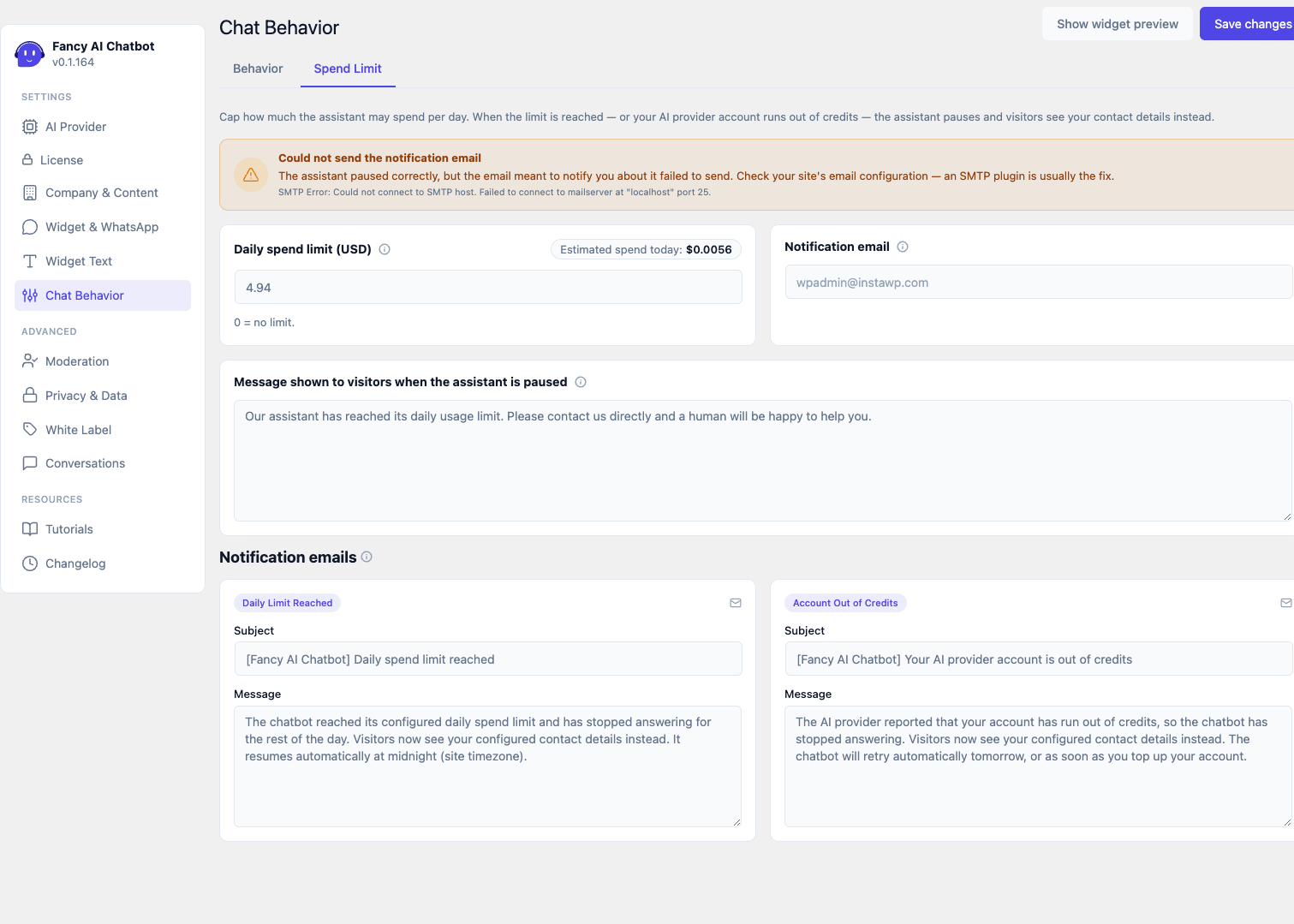
The assistant still pauses correctly even if the notification email itself couldn't be delivered — a broken mail setup never keeps the assistant running past its budget. But since that email is how you'd normally find out the limit was hit, the plugin also surfaces the delivery failure itself:
- A warning banner appears here on the Spend Limit tab, showing the actual error WordPress's mail function reported (a broken SMTP connection, in the example above) — usually enough to identify the fix.
- The same warning also appears as a dismissible notice across the rest of wp-admin (Dashboard, Posts, etc.), so you're not relying on remembering to check this tab.
- On most hosts,
wp_mail()isn't reliable without a proper SMTP connection configured — installing an SMTP plugin (WP Mail SMTP, Post SMTP, FluentSMTP, or similar) and connecting it to a real mail provider is usually the fix. - This warning clears itself automatically the next time an email of this kind sends successfully — nothing to dismiss or reset by hand.