License & Updates
Every purchase of Fancy AI Chatbot comes with a license key. This page covers what happens right after you buy, how to manage your license from inside the plugin, and how automatic updates work.
After you buy
Your purchase is processed through fancychatbot.com's store. Right after checkout:
- An account is created for you automatically on fancychatbot.com — you don't need to register separately.
- You'll receive an email with a link to set your own password (the same native WordPress flow used everywhere else — nobody, including us, ever sees or emails you a plaintext password).
- Once your password is set, log in at fancychatbot.com/my-account.
Your account dashboard (fancychatbot.com)
From your account, you can:
- View your license(s) and which sites currently have each one activated.
- Manage billing (a link takes you straight to your subscription — card details, invoices, cancel/renew — without a separate login step).
- Remove a site's activation, freeing up that slot to activate the license somewhere else.
Activating your license (inside the plugin)
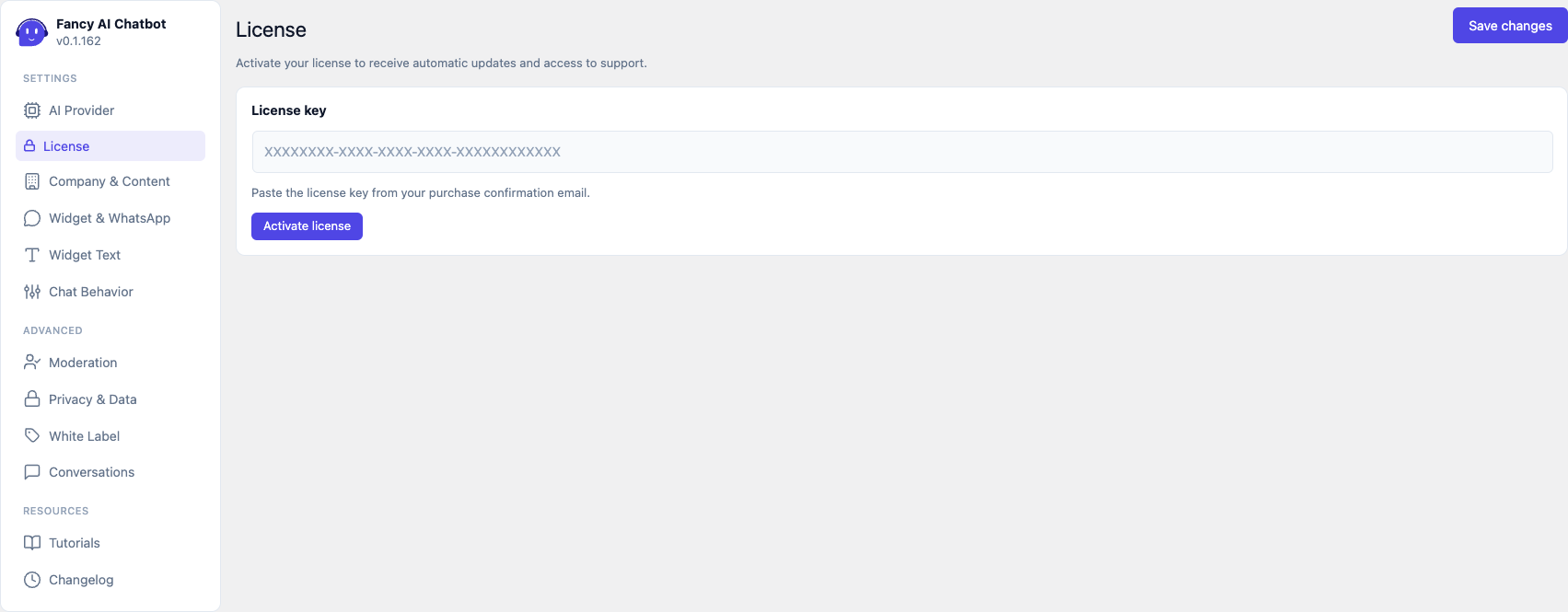
Go to Settings → License in the plugin.
- Paste your license key and click Activate license.
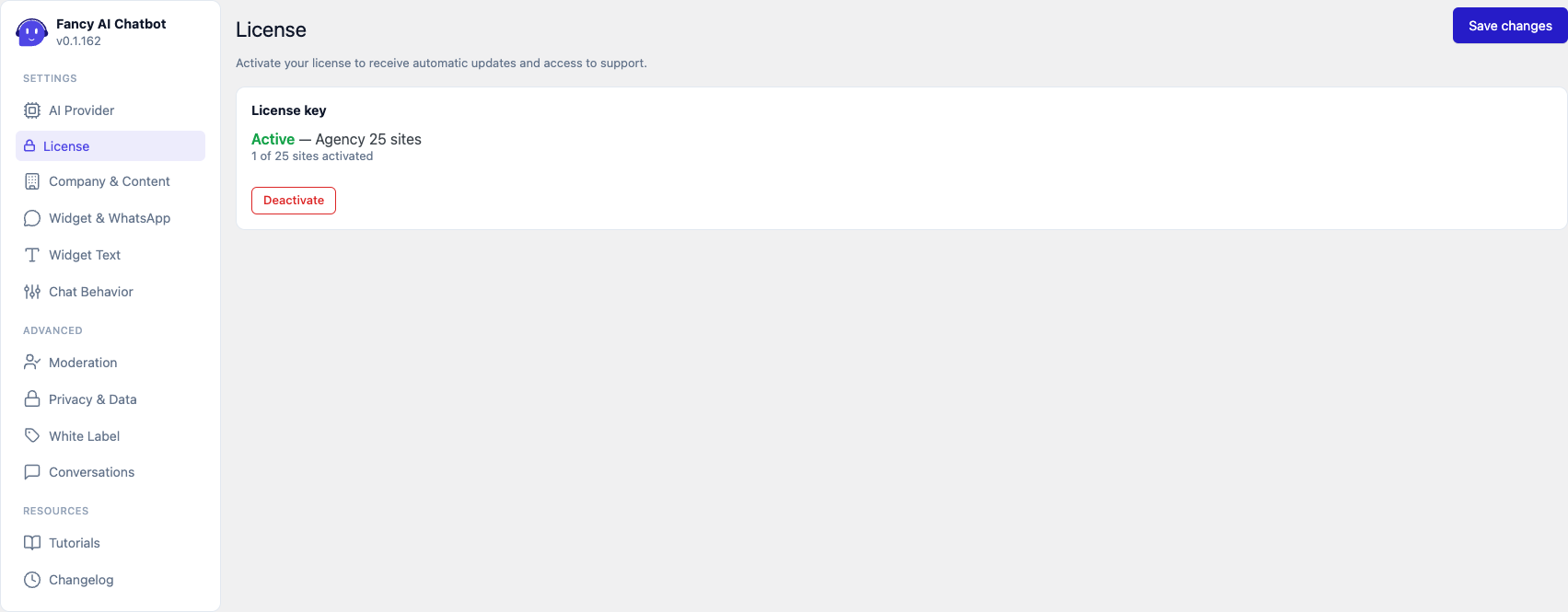
- Once active, the card shows: status (Active), your plan, the renewal date (for annual plans), and how many sites are currently using this license out of your plan's limit — for example, "2 of 5 sites activated".
- Deactivate frees up this site's slot on your license, so you can activate it elsewhere (for example, before moving the plugin to a different site).
If you remove a site from your account dashboard instead
If you free up an activation from your fancychatbot.com account (or directly through Lemon Squeezy) rather than from the plugin's Deactivate button, the plugin notices this on its own — either the next time you open the License tab, or automatically within a few hours — and returns to the "enter your license" screen. You don't need to do anything extra on the site itself.
Local and staging sites don't count against your limit
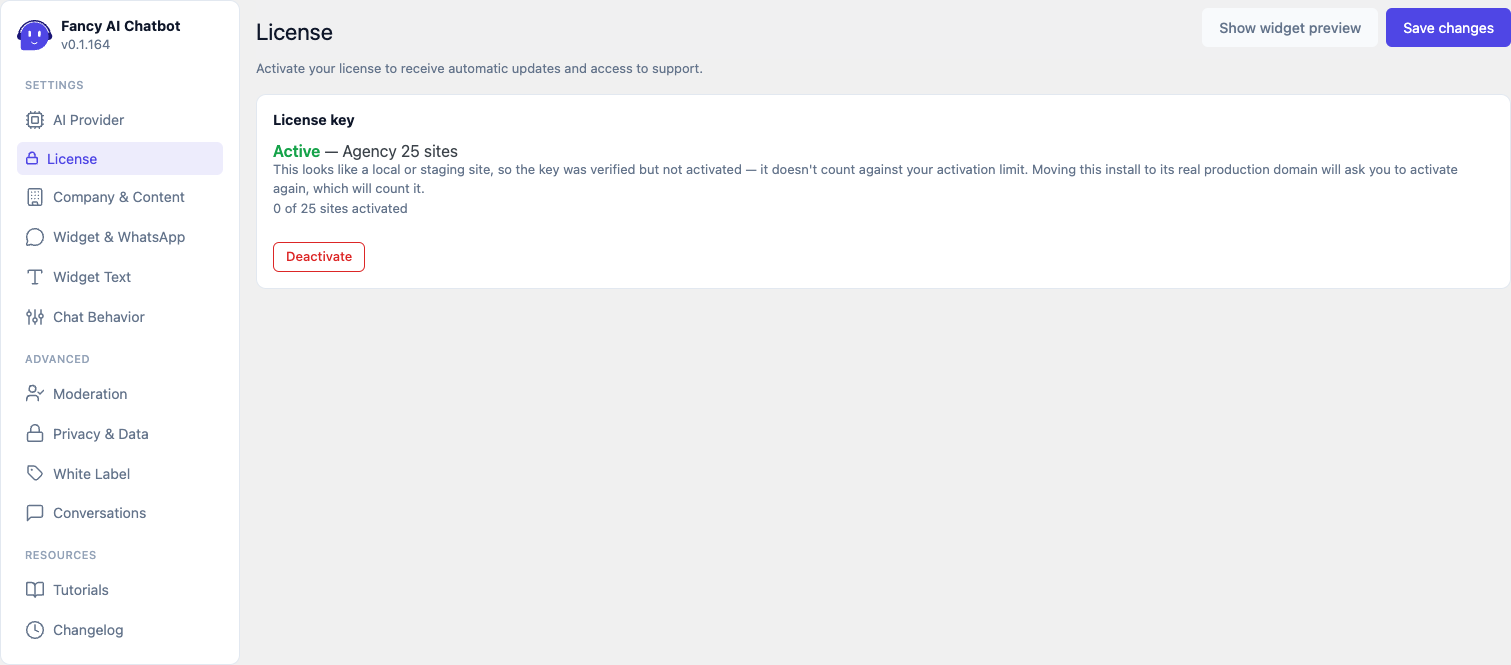
If you activate your license on a site the plugin recognizes as local or staging, it's verified as genuine but doesn't consume one of your plan's activation slots. This is detected automatically — nothing to configure — whenever:
- WordPress's own
WP_ENVIRONMENT_TYPEis set tolocal,development, orstaging(many hosts and local dev tools set this for you), or - the site's domain uses
.local,.test,.example,.invalid, or islocalhost/127.0.0.1— the domains used by Local, DevKinsta, Laravel Valet, MAMP, InstaWP, and most other local development tools.
The License tab shows this plainly — the card still reads "Active" with your plan, but adds a note explaining the key was verified, not activated, and shows "0 of X sites activated" since nothing was actually counted.
Everything else works exactly the same on a site like this, including White Label if your plan includes it — this only changes whether an activation slot is spent, never what the license unlocks.
Moving to production
Once that same install is reachable on what looks like a real production domain, the plugin notices on its own the next time the License tab loads, and reverts to the "enter your license key" screen. Paste your key and click Activate license again — that click is a real activation this time, and does count against your plan's limit, exactly as it would for any new site.
This is intentional: it's what lets you build and test on staging without worrying about burning through your activation limit, while still making sure every site actually running in production is properly licensed.
Plans and tiers
Every plan lets you activate the license on a set number of sites and includes automatic updates and support. The Agency and Scale plans additionally unlock White Label — replacing the plugin's name and branding throughout wp-admin. See White Label for what that includes.
What happens without a valid license
The chat widget itself never stops working just because a license expired or looks invalid — your visitors are never affected by those. What does depend on having an active license:
- No license entered yet: a reminder appears across wp-admin (and on the License tab itself) pointing you to enter one. This is just a nudge, not a restriction.
- Expired or invalid license: a similar reminder explains this and links to renew. Two things pause until you renew: automatic updates, and access to premium support.
There's one deliberate exception: a license explicitly disabled from the Lemon Squeezy dashboard (Store → Licenses → "Disable key" — something only you, the license holder, or our support team would ever do, for example after a refund) does hide the chat widget from your site entirely, since that's never an ambiguous or temporary state. The plugin's own settings show a clear "Your license has been disabled" notice when this happens. A merely expired or invalid license is different — it can be a transient billing hiccup, so it never blocks the widget.
Automatic updates
With an active license, the plugin checks for updates the same way any other WordPress plugin does — from the Dashboard → Updates screen, or the Plugins page. No extra steps.
Without an active license, no update is offered (nothing else about the plugin is affected). As soon as you renew or activate a valid license, updates resume automatically — no reinstall needed.
Troubleshooting
- "I don't see an update available" — open Settings → License and confirm it shows "Active". An expired or missing license is the most common reason updates don't appear.
- I accidentally freed up my site's activation — just re-enter your license key on the License tab; as long as your plan still has an available slot, activating again takes a few seconds.