White Label
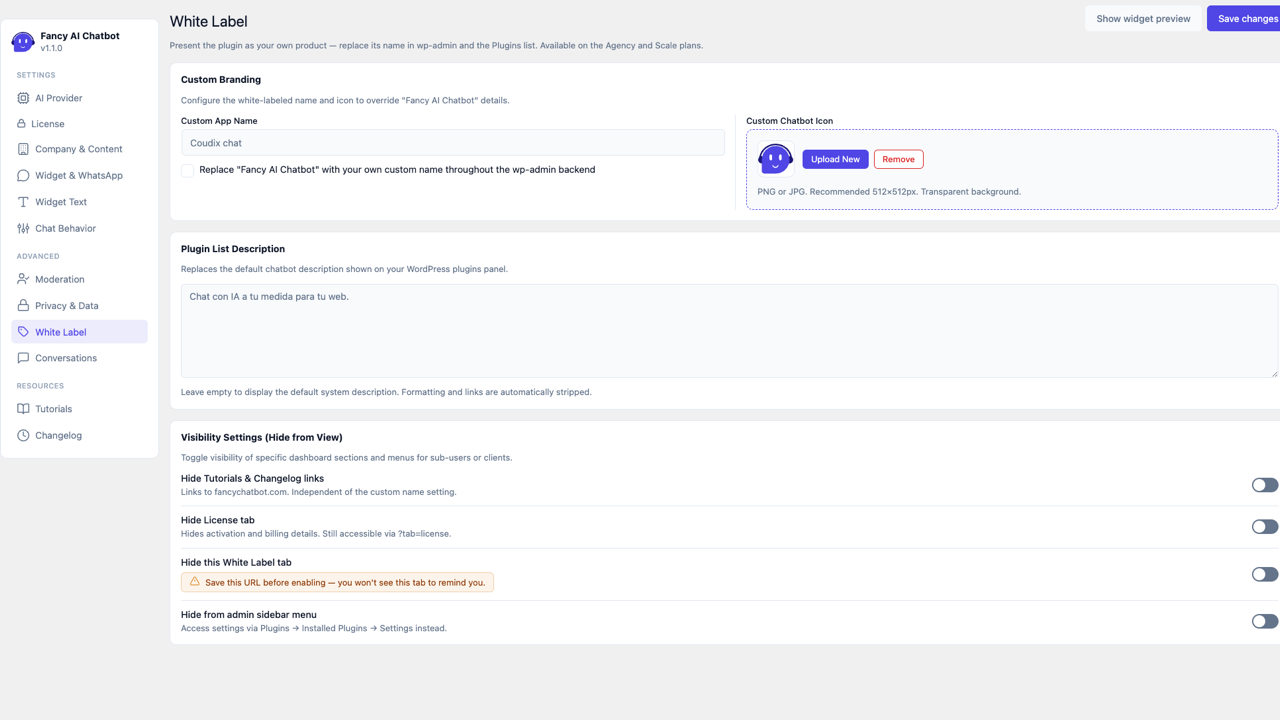
If your license is on the Agency or Scale plan (see License & Updates), a dedicated White Label tab appears in the sidebar (under Advanced):
- Check Replace "Fancy AI Chatbot" with your own name throughout wp-admin and type the name you want instead.
- That name replaces "Fancy AI Chatbot" in the wp-admin menu, the plugin's own settings page header, the browser tab title, and — unlike a typical plugin setting — on WordPress's native Plugins screen too (Installed Plugins list, including the author line, which is cleared entirely so nothing points back to fancychatbot.com). It's also used as the default sender name in the daily-spend-limit and out-of-credits email subjects (still fully editable either way, see Chat behavior).
- On any other plan, this tab just explains that white-labeling is an Agency/Scale feature — there's nothing broken to configure.
- If your license later lapses or drops below Agency/Scale, branding silently reverts to "Fancy AI Chatbot" everywhere (including the Plugins screen) — your saved name and the checkbox stay saved in case the license becomes valid again, they just stop taking effect meanwhile.
Custom icon
A Custom icon picker (same "Select Image" / "Remove" control as the widget's own Bot avatar) lets you upload your own image to replace the chatbot logo shown in this settings page's own sidebar. Leave it empty to keep the default icon. The real wp-admin menu icon (next to the plugin's name in the sidebar) is unaffected — it stays the generic dashicon.
Custom description on the Plugins screen
A Plugins list description field lets you replace the default description shown below the plugin name on the Plugins screen ("AI-powered chat widget for WordPress. Bring your own Anthropic, OpenAI, or DeepSeek API key.") with your own text. Leave it empty to keep the default. Independent of the name replacement above — you can set one without the other.
Hiding the Tutorials and Changelog links
A Resources links checkbox, Hide the Tutorials and Changelog links, removes those two links (which point to fancychatbot.com) from the plugin's own sidebar nav. This used to happen automatically whenever the name was replaced — it's now its own independent checkbox, so you can hide these links regardless of whether the name is replaced, or replace the name without hiding them.
Hiding the License tab
A License tab checkbox, Hide the License tab from the sidebar nav, removes the License tab from the plugin's own sidebar nav, along with every related nudge across wp-admin: the inline "Activate your license" / "license expired" callouts on the plugin's other tabs, and the site-wide admin notice that otherwise appears on every other wp-admin screen (Dashboard, Posts, etc.) when the license needs attention. Useful if you share wp-admin access with a client and don't want them seeing license/activation details (site count, plan name) or being prompted to manage it.
The tab itself keeps working — it's just not linked from the nav. Add
&tab=license to the plugin's settings URL any time you (the license
holder) need to check on it or make changes.
Hiding the White Label tab itself
A This White Label tab checkbox, Hide this White Label tab from the sidebar nav, hides the White Label tab's own nav entry. The name "White Label" by itself gives away that the product is rebranded, so this is worth hiding for the same reason as the License tab — arguably more so.
Same pattern as the License tab: the tab keeps working, just add
&tab=white_label to the plugin's settings URL to reach it. Since
checking this box hides the very screen that would remind you of that
URL, write it down somewhere before you save.
Hiding the plugin from the admin sidebar menu
Still on the White Label tab, a separate Admin sidebar menu section lets you check Hide from the admin sidebar menu — useful if you're managing this for a client and don't want it cluttering their wp-admin sidebar at all:
- Once hidden, the plugin's own top-level menu entry and its Conversations submenu both disappear from the sidebar entirely.
- The settings page is still fully reachable — a Settings link appears on this plugin's row on the Plugins screen (Plugins → Installed Plugins), right next to Deactivate, the same way many other WordPress plugins expose their settings.
- Direct links (bookmarks, the plugin's own internal "Open Conversations" link) keep working even with the sidebar entry gone.
- Like the name replacement above, this also reverts automatically if the license lapses or drops below Agency/Scale — the sidebar entry comes back so you're never locked out.